
In this guide, you will learn what cross-domain tracking is and how to set it up in GA4.
What is Cross domain tracking and why use it?
Cross domain tracking is a technique used to track the behavior of a user across multiple domains in a single session. It allows a business to track the user’s interactions with their website, even if the user moves from one domain to another. This is useful for businesses that have multiple subdomains or operate on multiple domains, as it allows them to get a more comprehensive view of the user’s behavior and interactions.
To implement cross-domain tracking, a business will need to use a tracking tool, such as Google Analytics, that supports cross-domain tracking. This typically involves adding a piece of tracking code to each domain and setting up the tracking tool to recognize when a user moves from one domain to another.
By tracking users across multiple domains, businesses can get a better understanding of how users are interacting with their websites and how they are progressing through the customer journey. This can be used to optimize the user experience and improve marketing efforts.
Checklist for implementation of Cross-domain tracking
Your configuration needs to pass the checklist for cross-domain tracking to function. Each of them.
- The same Google Analytics property must be used by all websites.
- The target page’s URL must be embellished with the linker parameter (_ga=).
- Update the list of referrals that were excluded. Include each and every outbound domain that leads a visitor to the destination domain.
How to implement cross domain tracking in GA4?
To set up cross-domain tracking in Google Analytics 4, you will need to follow these steps:
STEP 1: Go to Admin.
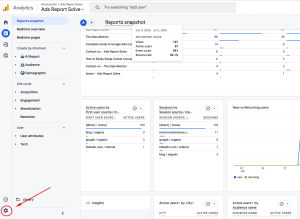
STEP 2: Go to Data streams.
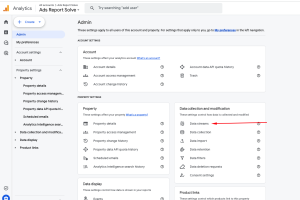
STEP 3: Select your Data stream.
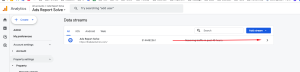
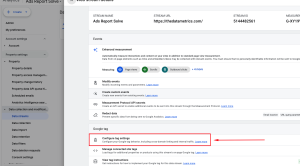
STEP 4: Click on ‘Configure tag setting’.
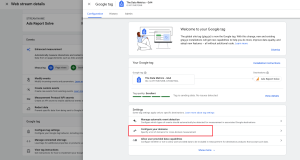
STEP 5: Click on ‘Configure your domains’.
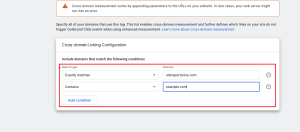
STEP 6: Firstly, enter your domain name and add a condition.
Now, add the external domain name.
Click Save.
Make sure to test your cross-domain tracking setup to ensure it is working correctly.